**Default:** [] | #### Section Configuration Options | Option | Description | |---|---| | triggerEntities | The array of entities to watch for state changes to determine if this sections displayTemplate should be re-rendered. | | displayTemplate | The template to send to Home Assistant to render. The results of the render will be displayed as the contents of this section in the module. | | class | The CSS class name to add to the `
` surrounding this section of the module. This is a name you choose yourself, for example "HAValues". You can then style this section by adding a .HAvalues-section in custom.css. |
| refreshTimer | Set a refresh timeout in seconds to re-render this section's displayTemplate, regardless of whether or not an entity has changed states. |
#### Note
When working on your templates you can always check them in the [Home Assistant Template Editor](https://my.home-assistant.io/redirect/developer_template).
[](https://my.home-assistant.io/redirect/developer_template)
### Examples
#### Simple Hiding
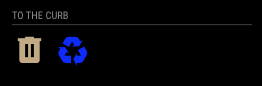
A Simple hiding module only displayed on Module Trigger:
This sets up a simple module that only displays the module when the binary_sensor.put_trash_out entity is set to **on**. It will then display if the trash and/or the recycle icons need to be displayed based on the *displayTemplate*.
```javascript
{
module: 'MMM-HomeAssistantDisplay',
position: 'top_left',
config: {
host: "YOUR_HOME_ASSISTANT_HOST",
token: "YOUR_HOME_ASSISTANT_TOKEN",
port: 8123,
useTLS: true,
title: "To the Curb",
useModuleTigger: true,
moduleTriggerTemplate: `{{ states.binary_sensor.put_trash_out.state == "on"}}`,
moduleTriggerEntities: ["binary_sensor.put_trash_out"],
class: "to-the-curb",
sections: [{
triggerEntities: [
"binary_sensor.put_recycle_out",
"binary_sensor.put_trash_out"
],
displayTemplate: `
{% if states.binary_sensor.put_trash_out.state == "on" %}{% endif %}
{% if states.binary_sensor.put_recycle_out.state == "on" %}{% endif %}
`,
class: "put-outs"
}]
},
},
```
#### Media Info when Playing
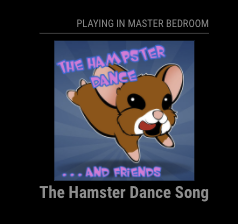
Showing playing media info only when actually playing:
This example pulls the info from a media player entity in Home Assistant. It only shows the module when its playing and grabs the title and image url from the attributes of the media player.
```javascript
{
module: 'MMM-HomeAssistantDisplay',
position: 'top_right',
config: {
host: "YOUR_HOME_ASSISTANT_HOST",
token: "YOUR_HOME_ASSISTANT_TOKEN",
port: 8123,
useTLS: true,
title: "Playing in Master Bedroom",
useModuleTigger: true,
moduleTriggerTemplate: `{{ states.media_player.master_bedroom_echo_show.state == "playing"}}`,
moduleTriggerEntities: [
"media_player.master_bedroom_echo_show"
],
class: "playing_in_master",
sections: [
{
triggerEntities: [
"media_player.master_bedroom_echo_show"
],
displayTemplate: `

` }] } } ``` #### Always Displayed with Complex Template Always displayed module with complex display template: This example will show a complex template logic that is always displayed because it does not use the module trigger. 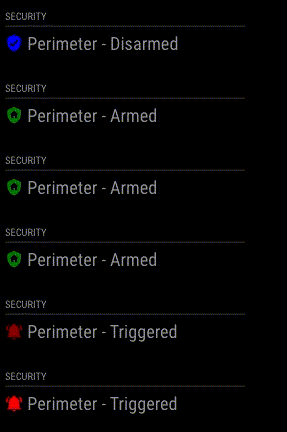 ```javascript { module: 'MMM-HomeAssistantDisplay', position: 'top_left', config: { host: "YOUR_HOME_ASSISTANT_HOST", token: "YOUR_HOME_ASSISTANT_TOKEN", port: 8123, useTLS: true, title: "Security", class: "security", sections: [{ triggerEntities: [ "alarm_control_panel.outside_perimeter" ], displayTemplate: ` {%- if states.alarm_control_panel.outside_perimeter.state == "disarmed" -%} {%- set icon = "shield-check" -%} {%- set stateText = "Disarmed" -%} {%- elif states.alarm_control_panel.outside_perimeter.state == "armed_night" -%} {%- set icon = "shield-home" -%} {%- set stateText = "Armed" -%} {%- elif states.alarm_control_panel.outside_perimeter.state == "armed_away" -%} {%- set icon = "shield-lock" -%} {%- set stateText = "Armed" -%} {%- elif states.alarm_control_panel.outside_perimeter.state == "triggered" -%} {%- set icon = "bell-ring blink" -%} {%- set stateText = "Triggered" -%} {%- endif -%} Perimeter - {{stateText}} `, class: "perimeter" }, ] }, }, ``` #### Programatic Sections Programatic setting of sections from long list for always displayed module: This shows how you can use code to set the configuration for the module. It takes a long list of entities to watch and sets each of them as a section of the module to display only when opened. 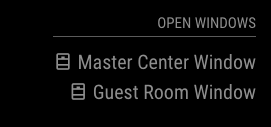 ```javascript // Top of config.js let perimeterWindows = [ { entity: "binary_sensor.front_office_window", name: "Front Office Window" }, { entity: "binary_sensor.garage_window", name: "Garage Window" }, { entity: "binary_sensor.dining_room_window", name: "Dining Room Window" }, { entity: "binary_sensor.master_bedroom_left_window", name: "Master Left Window" }, { entity: "binary_sensor.master_bedroom_center_window", name: "Master Center Window" }, { entity: "binary_sensor.master_bedroom_right_window", name: "Master Right Window" }, { entity: "binary_sensor.guest_room_window", name: "Guest Room Window" }, ]; let perimeterWindowSections = []; perimeterWindows.forEach((item, i) => { perimeterWindowSections.push({ triggerEntities: [ item.entity ], displayTemplate: ` {% if states.${item.entity}.state == "on" %} ${item.name}{% endif %} `, class: "window" }) .... // The module entry { module: 'MMM-HomeAssistantDisplay', position: 'top_right', config: { host: "YOUR_HOME_ASSISTANT_HOST", token: "YOUR_HOME_ASSISTANT_TOKEN", port: 8123, useTLS: true, title: "Open Windows", useModuleTigger: false, class: "windows", sections: [ ...perimeterWindowSections, ] }, }, ``` ### License The MIT License (MIT) ===================== Copyright © 2021 Brian Towles Permission is hereby granted, free of charge, to any person obtaining a copy of this software and associated documentation files (the “Software”), to deal in the Software without restriction, including without limitation the rights to use, copy, modify, merge, publish, distribute, sublicense, and/or sell copies of the Software, and to permit persons to whom the Software is furnished to do so, subject to the following conditions: The above copyright notice and this permission notice shall be included in all copies or substantial portions of the Software. **The software is provided “as is”, without warranty of any kind, express or implied, including but not limited to the warranties of merchantability, fitness for a particular purpose and noninfringement. In no event shall the authors or copyright holders be liable for any claim, damages or other liability, whether in an action of contract, tort or otherwise, arising from, out of or in connection with the software or the use or other dealings in the software.**
{{ states.media_player.master_bedroom_echo_show.attributes.media_title }}
`,
class: "playing_info"
}
]
},
},
```
#### Simple example
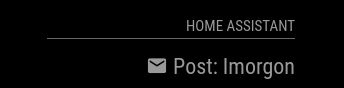
```javascript
{
module: 'MMM-HomeAssistantDisplay',
position: 'top_right',
config: {
host: "YOUR_HOME_ASSISTANT_HOST",
token: "YOUR_HOME_ASSISTANT_TOKEN",
port: 8123,
useTLS: false,
class: "HAvalues",
sections: [{
displayTemplate: `
Post: {{states('sensor.postleverans')}}` }] } } ``` #### Always Displayed with Complex Template Always displayed module with complex display template: This example will show a complex template logic that is always displayed because it does not use the module trigger.  ```javascript { module: 'MMM-HomeAssistantDisplay', position: 'top_left', config: { host: "YOUR_HOME_ASSISTANT_HOST", token: "YOUR_HOME_ASSISTANT_TOKEN", port: 8123, useTLS: true, title: "Security", class: "security", sections: [{ triggerEntities: [ "alarm_control_panel.outside_perimeter" ], displayTemplate: ` {%- if states.alarm_control_panel.outside_perimeter.state == "disarmed" -%} {%- set icon = "shield-check" -%} {%- set stateText = "Disarmed" -%} {%- elif states.alarm_control_panel.outside_perimeter.state == "armed_night" -%} {%- set icon = "shield-home" -%} {%- set stateText = "Armed" -%} {%- elif states.alarm_control_panel.outside_perimeter.state == "armed_away" -%} {%- set icon = "shield-lock" -%} {%- set stateText = "Armed" -%} {%- elif states.alarm_control_panel.outside_perimeter.state == "triggered" -%} {%- set icon = "bell-ring blink" -%} {%- set stateText = "Triggered" -%} {%- endif -%} Perimeter - {{stateText}} `, class: "perimeter" }, ] }, }, ``` #### Programatic Sections Programatic setting of sections from long list for always displayed module: This shows how you can use code to set the configuration for the module. It takes a long list of entities to watch and sets each of them as a section of the module to display only when opened.  ```javascript // Top of config.js let perimeterWindows = [ { entity: "binary_sensor.front_office_window", name: "Front Office Window" }, { entity: "binary_sensor.garage_window", name: "Garage Window" }, { entity: "binary_sensor.dining_room_window", name: "Dining Room Window" }, { entity: "binary_sensor.master_bedroom_left_window", name: "Master Left Window" }, { entity: "binary_sensor.master_bedroom_center_window", name: "Master Center Window" }, { entity: "binary_sensor.master_bedroom_right_window", name: "Master Right Window" }, { entity: "binary_sensor.guest_room_window", name: "Guest Room Window" }, ]; let perimeterWindowSections = []; perimeterWindows.forEach((item, i) => { perimeterWindowSections.push({ triggerEntities: [ item.entity ], displayTemplate: ` {% if states.${item.entity}.state == "on" %} ${item.name}{% endif %} `, class: "window" }) .... // The module entry { module: 'MMM-HomeAssistantDisplay', position: 'top_right', config: { host: "YOUR_HOME_ASSISTANT_HOST", token: "YOUR_HOME_ASSISTANT_TOKEN", port: 8123, useTLS: true, title: "Open Windows", useModuleTigger: false, class: "windows", sections: [ ...perimeterWindowSections, ] }, }, ``` ### License The MIT License (MIT) ===================== Copyright © 2021 Brian Towles Permission is hereby granted, free of charge, to any person obtaining a copy of this software and associated documentation files (the “Software”), to deal in the Software without restriction, including without limitation the rights to use, copy, modify, merge, publish, distribute, sublicense, and/or sell copies of the Software, and to permit persons to whom the Software is furnished to do so, subject to the following conditions: The above copyright notice and this permission notice shall be included in all copies or substantial portions of the Software. **The software is provided “as is”, without warranty of any kind, express or implied, including but not limited to the warranties of merchantability, fitness for a particular purpose and noninfringement. In no event shall the authors or copyright holders be liable for any claim, damages or other liability, whether in an action of contract, tort or otherwise, arising from, out of or in connection with the software or the use or other dealings in the software.**